
How to Manage App Store and Google Play Reviews and Analytics in One Place
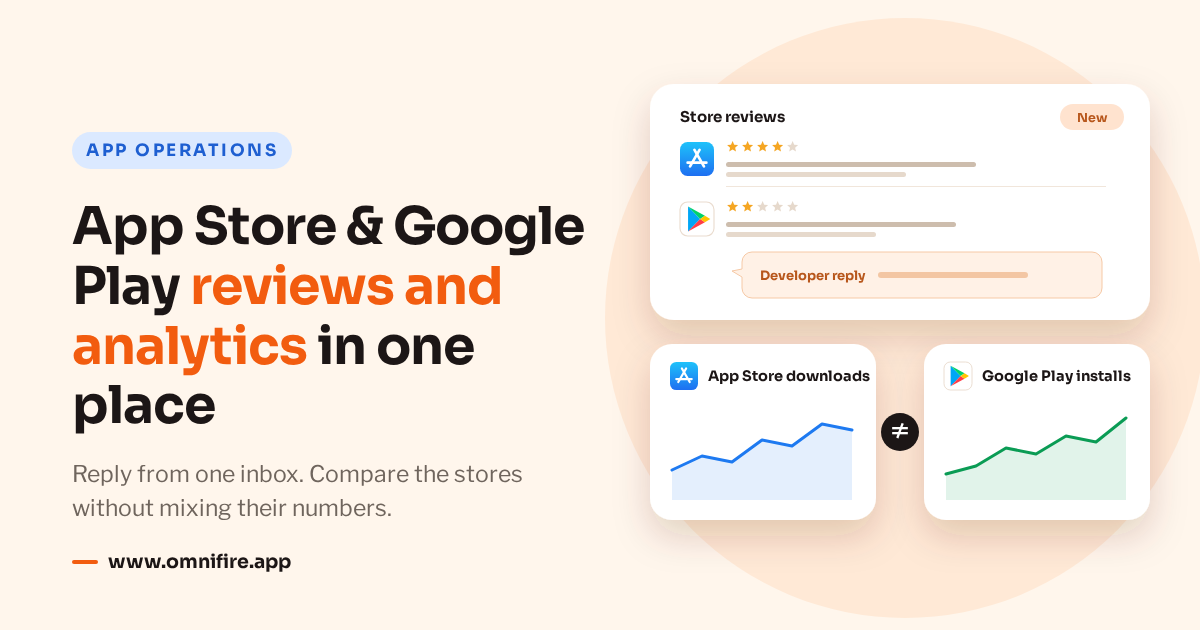
Connect each store once and every review, including the back catalog, lands in one inbox. Downloads, updates, ratings, revenue and stability sit next to each other, one column per store. The two stores count and publish these numbers differently, though, so a few of them can be added up and most can’t.
Most teams that ship on both iOS and Android end up in the same spot. Someone answers reviews in two consoles, someone else logs into both to pull numbers, and the weekly report gets stitched together by hand. This post shows how to move the reviews and the store reports into OmniFire, and what to watch for once the two stores share a screen.
We make OmniFire, so read this with that in mind. We wrote it from our own code and docs and haven’t tested every step on a live store account. Store rules are current as of October 2026.
What one place covers, and what stays in the store consoles
App Store Connect and Google Play are app-operations connections in OmniFire. They’re for reviews and reports; you can’t publish anything to them. Reviews appear in the Inbox alongside your social comments and messages, and the reports are under Analytics, on the App stores tab.
| In OmniFire | Still in App Store Connect / Play Console |
|---|---|
| Read reviews, including the full back history, and post public developer replies | Google feedback from alpha and beta testing tracks |
| Mark read, archive and restore conversations; delete your own App Store developer reply | Neither store lets developers delete or hide customer reviews; Google’s API has no way to delete a developer reply |
| Compare supported download, update, store listing, stability, rating and revenue reports | Metrics the stores keep in their web consoles only, such as Google impressions, DAU/MAU and retention |
| Connect apps for review handling and reporting | Ship app versions and change store metadata or screenshots |
This isn’t a replacement for the analytics SDK in your app. OmniFire reads what the stores hand to developers: sessions, active devices, deletions and crashes from Apple, and crashes, ANRs and 28-day crash and ANR rates from Google. Retention, DAU/MAU, ad attribution, keyword rankings and subscription analytics aren’t part of that, and Google keeps impressions, DAU/MAU and retention inside the Play Console.
For a small team that split usually works fine: reviews and store reports in one place, the console for the rest. The app analytics feature page lists exactly which reports come across.
Before you connect: the access each store needs
You connect with a developer credential. OmniFire then lists the apps that credential can see, and you choose which to import. One credential can cover several apps, but each app you import uses one connected account on your plan.
The part that trips people up is that reviews, metrics and revenue each need their own access.
| Store | Reviews | Metrics | Revenue |
|---|---|---|---|
| Apple | API key: Issuer ID, Key ID and .p8 private key | Team Vendor Number for Sales & Trends, on top of the key | Sales report using that Vendor Number |
| Service-account JSON; enable Play Developer Reporting API to list apps; grant Reply to reviews | Statistics Cloud Storage bucket, pubsite_prod_rev_…; View app information = Global. The same bucket supplies the full review history | Separate earnings bucket; View financial data = Global |
On the Apple side we suggest an Admin API key, simply because one key then covers reviews and reports. Apple doesn’t need Admin for replies; in App Store Connect, the Account Holder and Customer Support roles can answer reviews too.
The Vendor Number matters more than it looks. Every Apple report in OmniFire runs through it, so without it you get no downloads, impressions or ratings, not just missing revenue. On the Google side, the statistics bucket and the earnings bucket are two separate grants, and it’s worth confirming each one.
When you connect, OmniFire only tests whether it can read reviews. That’s why the most common support case is “reviews are fine, the dashboard is empty”. If that happens to you, go back to the Vendor Number or the bucket permissions before you draw any conclusions from the charts. You also don’t need to type a Google package name anywhere in this flow.
Paste keys and service-account files only into OmniFire’s connect form, which stores them encrypted. Please don’t pass them around over chat or email, even to whoever is helping with setup.
A daily routine for app reviews
Open the engagement inbox, filter to the client, store and app you’re handling, and switch on unread. That’s today’s queue. Each review shows the stars, the author, the text and any developer reply already posted, plus a title for Apple reviews.
Everyone can read your reply on the store page, so answer the question publicly and keep any investigation and personal user details out of it. Google caps replies at 350 characters of plain text. Apple allows 5,970.
Each review can carry only one developer reply. On both stores, replying again replaces what’s there, and there’s no separate edit box, so read the existing reply first in case a colleague got to it. Google notifies the user about your first reply to a new or edited review, but not about later changes.
When you’re done with a conversation, mark it read and archive it. Archive and restore both work in bulk. This only tidies up OmniFire; nothing changes on the store.
App Store reviews also let you delete your own reply from the thread, after a confirmation. The customer’s review stays, and you can reply again later. Google Play has no API for deleting a reply, so there’s no delete option on Google reviews. To change one, post a new reply over it.
Editors and above can reply within the clients they’re assigned to. Review replies don’t go through the content approval workflow, which only covers posts, so decide as a team who handles the sensitive ones.
Some filters you might expect aren’t there yet. You can’t filter by star rating, language, country, replied or unreplied, or assignee, and you can’t assign a review to a teammate. Search covers the subject and participant name, not the review text. Plan your rota around that.
New reviews arrive about every 15 minutes. After you connect, OmniFire also back-fills older reviews in the background. For the App Store it works through every review, a few hundred per cycle. For Google Play it reads the monthly review files in your statistics bucket, because Google’s API only returns production-app text reviews written or changed in the last seven days. History comes in already marked read, so it won’t flood your unread view, and it never overwrites a review the live sync already picked up.
Reading the App stores tab
The App Store and Google Play dashboard shows up to four cards at the top when there’s data: month-to-date revenue, downloads/installs, updates and product page views. Uninstalls, total installs and Google’s install base are in the per-app table below.
The modules don’t all cover the same period. Most show a fixed rolling 30 days. The trend chart has its own range picker, with 7, 30 and 90 days among the options, and changing it only moves that chart. Ratings are the latest snapshot. So when you copy numbers into a report, label each one with its period instead of calling the lot “this week”.
Click an app to open the drill-down drawer: revenue trends, revenue by region, the per-store funnel, usage and stability, and ratings by territory. The funnel gives each store its own row, because Google doesn’t share impressions outside its console and counts store listing visitors differently from Apple’s page views. Usage and stability never adds Apple and Google together, and it marks the Apple figures that only include users who share analytics data.
A blank module isn’t a zero. Usually the report hasn’t been published yet or the access isn’t set up. Rule those out before you talk about performance. The wider analytics feature uses the same store definitions.
Which iOS and Android numbers can be combined
Seeing both stores on one screen makes the differences obvious, but it doesn’t make the numbers mean the same thing. Use the table below before you add anything up, and keep the per-store rows in your weekly report so a total doesn’t hide a gap.
| Metric | Apple | Combine? | |
|---|---|---|---|
| Revenue | Daily developer proceeds; refunds negative | Earnings report by transaction date; the file arrives monthly | Yes, same period and currency; not payouts |
| Downloads / installs | First-time download units | Daily user installs | Store-reported activity only, not unique users |
| Updates | Reported updates | Daily device upgrades | Activity total, definitions differ |
| Ratings | Average and count by storefront | Average overall and by country; no count | No combined average |
| Page views / conversion | Product page views, including people who already have the app; downloads divided by views | Daily unique store listing visitors who don’t have the app; acquisitions divided by visitors | Rough total only; never average the rates |
| Uninstalls | Deletions, only from users who share analytics data | Daily user uninstalls, all users | No |
| Crashes | Crashes, only from users who share analytics data | Daily crashes and ANRs from Play Console; 28-day crash and ANR rates | No |
| Install base / active devices | Active devices: devices with at least one session, opt-in users only | Install base: devices with the app that were switched on in the last 30 days | No; different measures |
Revenue is converted to USD before it’s added up. Rows without an exchange rate are left out and flagged, and the total is a reporting figure, not what the stores actually pay you. Google’s earnings file only arrives once a month, so a month that’s still open isn’t ready for a full comparison.
Ratings need care too. Apple’s “global” rating in OmniFire is our weighted roll-up of up to 40 storefronts, including the US. Apple doesn’t publish an official global average. Google gives no rating count at all, so there’s no fair way to weight the two stores together. And a rating count isn’t the same as the number of written reviews.
Google’s install base counts devices that have the app and were switched on in the last 30 days. It isn’t daily or monthly active users, which is why OmniFire labels it “Install base”. Apple’s active devices are counted from sessions and only include users who share analytics data. The two sit in different places with different names, and it’s best to keep it that way in your reports rather than calling both “active users”.
Reporting delays to plan around
Apple Sales and Trends data arrives the next day, with report days on Pacific Time. The newest day or two can be incomplete, so a dip on the last date is usually just missing data.
Google captures statistics daily but publishes them in monthly CSV files, usually three to seven days behind, and it says not to rely on a fixed update time. Earnings reports cover the previous month and normally land by the fifth. Google has no daily revenue.
OmniFire syncs store metrics every day at 02:00 UTC and re-reads the last seven days each time. Manual sync is there, with a cooldown, but it can’t fetch a report the store hasn’t published. A new connection also won’t have 30 or 90 days of history on day one.
Time zones, report timing and currency conversion all mean OmniFire won’t match the consoles to the cent. When you reconcile, note the period and which report dates were in before you go hunting for an error.
A weekly review that connects feedback and numbers
- Read feedback app by app. Note the problems that keep coming up in low-star reviews. This is reading, not automated sentiment analysis.
- Pick a period you can compare. Check which dates each store has data for, then compare trends over the same stretch. Keep Google’s monthly revenue separate from daily figures that are still filling in.
- Look at each store on its own. Read downloads, updates and ratings by that store’s definitions first, then add up whatever can fairly be combined.
- Log releases. Put release dates next to your notes. Timing alone doesn’t prove a release caused anything.
- Write down the next step. Decide what needs investigating and what needs a public reply, and put a name next to each.
A cluster of complaints and a drop in downloads can show up in the same week without one causing the other. Looking at them together tells you what to dig into next. It can’t tell you which reviews moved revenue or installs.
FAQ
Can I reply to App Store and Google Play reviews from one tool?
Yes. Supported reviews from both stores land in one OmniFire inbox, and editors and above can reply within their assigned clients. Replies are public. Apple allows 5,970 characters and Google 350.
Can I see old reviews?
Yes. OmniFire back-fills the full App Store review history and imports older Google Play reviews from the monthly review files in your statistics bucket. Without the bucket, Google reviews only go back as far as the API’s seven-day window. History loads gradually, so a large app can take a few hours.
Can I delete a developer reply?
On the App Store, yes: delete your own reply from the review thread and confirm. On Google Play, no, because Google’s API doesn’t support it, but you can replace the reply. Neither store lets developers delete a customer’s review.
Is the data real time?
No. Reviews are polled about every 15 minutes. Metrics sync daily and depend on when each store publishes. Google statistics can lag three to seven days, and earnings come monthly.
Why don’t Apple and Google numbers match?
They define things differently and report on different schedules. Apple’s first-time download units aren’t Google’s user installs, and Apple proceeds come in daily while Google’s earnings file comes once a month. Compare store by store before you trust a combined figure.
Which plan includes app stores?
App operations is on all current plans, from $19.99/month with a 7-day free trial. Each imported app counts toward your connected-account limit; pricing shows how many each plan includes.
Sources: Google Reply to Reviews, Google monthly reports help, Apple Respond to reviews and Apple Sales and Trends reports and metric definitions; checked October 27, 2026.