
How to Set Up a Social Media Approval Workflow for Your Team
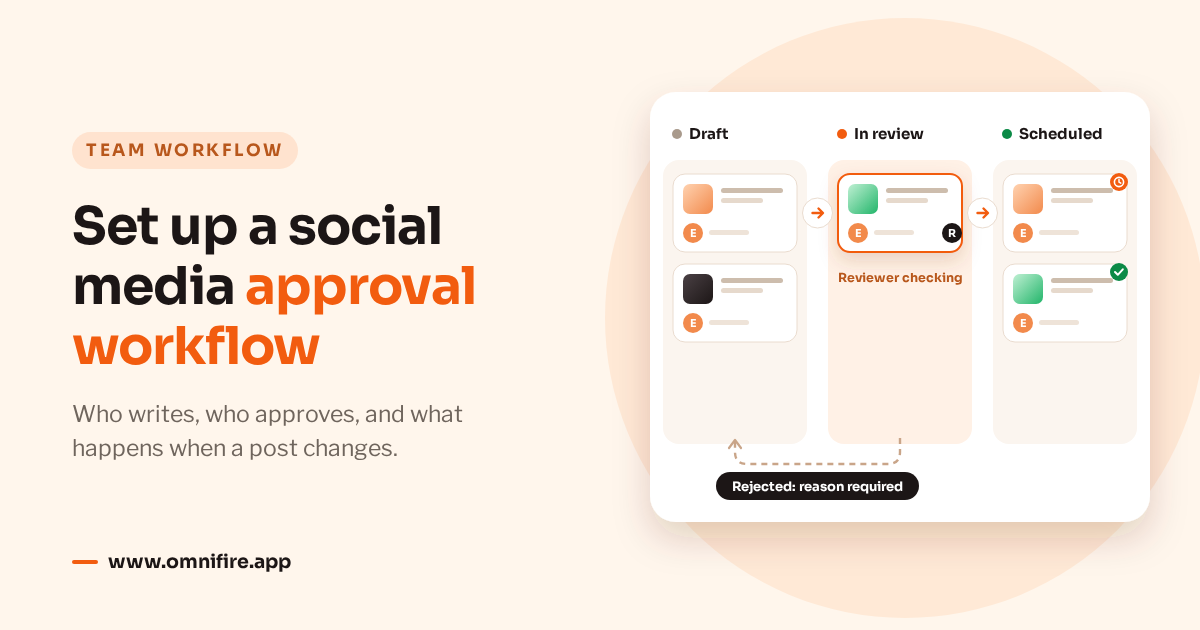
The simplest approval workflow looks like this: one person writes and submits, someone else reviews, and the reviewer either publishes, schedules or sends it back with a reason. The writer fixes it and submits again. If anyone edits the post after it’s approved, it goes back for review. Agree who handles each step before you start picking posting times.
Most approval problems aren’t about whether someone looked at a post. They’re about whose turn it is. A draft in a shared doc can sit for days when nobody is sure who’s checking it or who’s meant to schedule the final version.
We make OmniFire, so keep that in mind. This post covers the checklist we’d give a reviewer and how approval is set up per client in OmniFire. The checklist is our advice; the product doesn’t ask for any of it. Work out who does what first, then set permissions to match.
When an approval step is worth it
Approval makes sense when someone other than the writer is answerable for the account: an in-house brand team, an agency posting for clients, a freelancer writing under another company’s name. A good review catches the mistakes that actually hurt, like a wrong offer, a claim nobody can back up, or a post headed for the wrong account.
Regulated or sensitive topics may need a specialist before anything goes out, and you should decide outside the tool who that is. Permission to publish doesn’t qualify anyone to judge legal wording or medical advice, and an approval step in a publishing tool isn’t a compliance process.
A solo creator posting their own low-risk content probably doesn’t need approval at all. With no second person, there’s no independent check to add. Mixed teams don’t have to treat every account the same way either, because OmniFire lets you turn approval on for one client and leave it off for another.
Decide who writes, who approves and for which clients
Two settings control access. A person’s role decides what they can do, and their client assignments decide which clients they can do it for. Agencies feel this most, since working on one brand shouldn’t open up all the others.
| Role | What they do | Can publish directly? |
|---|---|---|
| Editor | Create, edit and submit content for review. | Only when approval is off for that client. |
| Reviewer | Everything an editor can do, plus review and approve/publish. | Can publish or schedule through review, within the self-approval rules. |
| Admin | Everything a reviewer can do, plus manage members, clients, accounts and settings. | Yes, within the client’s approval policy. |
| Owner | Everything an admin can do, plus workspace and billing management. | Yes, within the client’s approval policy. |
Each role includes everything below it. There’s no separate publisher role: whoever approves a post also publishes or schedules it. You assign admin, reviewer or editor on the members page, and ownership moves through an ownership transfer.
Members who aren’t admins only see and work on their assigned clients, so a reviewer’s queue only holds drafts for those clients. Owners and admins see everything. A freelancer who just writes drafts for one brand should be an editor on that one client, with no admin access.
It’s also worth choosing the reviewer before writing starts. With self-approval off, neither the author nor the last person to save changes can approve. If the usual reviewer helped write or revise the draft, someone else has to sign off, and you want to know who that is well before the deadline.
What the reviewer should check
We’d use the same checklist every time and tweak it per account. It’s a suggestion only; OmniFire doesn’t require it or check any of it for you.
- Account and client: is it the right brand, and is every target account right? Accounts with similar names deserve a second look.
- Platform copy and length: read the text that’s actually going to each destination, not just the campaign idea. The opening, formatting and length should suit that platform.
- Media and cover: are these the files for this post, and does any text on them match the approved offer?
- Links: click through to the page itself and read the visible link text too.
- Mentions and claims: check names and promises against what the writer was given. If a claim looks shaky, pass it to whoever is responsible for backing it up.
- Time and time zone: check the date and the zone it’s scheduled in. A bare clock time is easy to misread when the team spans regions.
Ideally the writer fills in anything missing before submitting. The reviewer’s time is better spent checking the post than guessing which offer or image the brief meant.
Set it up in OmniFire
This order keeps the settings in line with how your team actually works.
- Check the plan. Approval workflow comes with Business, Agency and Enterprise and shows as locked on Basic and Professional. The pricing page compares them.
- Open Clients & Brands. An admin or owner sets the policy here, one client at a time. There’s no single switch for the whole workspace.
- Turn on Require approval before publishing. Only for the clients whose posts need review. The rest can stay off.
- Decide on Allow self-approval. It starts off when you enable approval. Keep it that way if you want a second pair of eyes; switch it on only if you’re a very small team and comfortable giving that up.
- Assign member roles and clients. Writers become editors, and reviewers go on the same clients as the writers they review. Admins and owners see every client anyway.
- Check the compose screen. For that client, Publish and Schedule are replaced by Submit for review, for editors and for anyone else writing new content there. Save draft still works.
Before the first real deadline, get the team to agree who writes, who reviews, and who steps in when the usual reviewer wrote or last edited the draft. Admins writing new posts follow the client policy too.
What happens to a draft
The author submits the draft, or an admin or owner can submit it for them. Every target account has to belong to the draft’s client, otherwise the submission is refused, so if one fails, the account list is the first place to look.
Submitted content goes to the Review queue with the status In review. OmniFire notifies assigned reviewers, admins and owners, but delivery is best-effort and depends on each person’s notification settings. Make checking the queue part of someone’s routine rather than relying on a particular message channel.
The reviewer opens the item and can view, edit, publish or reject it. Approving means publishing now or setting a schedule; that single step records the approval, and nobody has to come back and publish it later.
If it isn’t ready, Reject asks for a written reason and notifies the author. The more specific the reason, the faster the fix: name the wording, account or image and say what you’d like instead. The writer edits the rejected draft and submits it again. There’s no separate request-changes button; reject and resubmit is the loop.
With self-approval off, the author and the last editor can’t approve. OmniFire also blocks approval if the draft changed after the reviewer opened it, and asks them to reload. That’s useful when two people are working on the same post, because what the reviewer read a few minutes ago may no longer be what’s there.
Edits after approval and scheduled posts
An approval covers the version that was reviewed. Save changes to anything in review or already approved and it drops back to draft, ready to be submitted again. Edits the reviewer makes on the review screen and publishes or schedules in the same step count as reviewed. A small fix from the writer afterwards doesn’t, however minor it is.
Cancel the schedule on a post under approval and it returns to the review queue, not to regular drafts. From there you can edit it, publish now or reschedule. Cancelling only works before publishing starts; once a post is going out, it can’t be pulled back.
So an edited post and a cancelled schedule end up in different places, and it helps to write that down in your team notes. When a scheduled post needs fixing, check where it currently sits before telling the client it can still be stopped.
The scheduled time uses the time zone picked when scheduling. Check it against when the audience should see the post, especially if writer and reviewer are in different regions. Scheduled publishing and time zones explains how that works, and saves you from handing over a date with no zone attached.
Inbox replies, including app-review replies, aren’t covered by content approval. Treat them as their own job; there’s more on that in managing App Store and Google Play reviews.
Keep a record
The Activity log records the time, user, action and details of workflow and publishing actions, including submissions, approvals, rejections and schedule cancellations. Owners and admins see what everyone did; other members see only their own actions. For the whole team’s history, ask an admin or owner.
Snapshot history and diff compare two versions of a post: title, workflow status, platforms, media count and body text, plus per-article fields for WeChat article sets. When someone asks what changed after approval, this is where you find out.
Owners and admins on Business and above can export the log as CSV. It’s kept for 90 days on Business, 180 on Agency and 365 on Enterprise, so if you need records for longer, export them before they expire.
FAQ
Can an editor publish without approval?
Yes, if approval is off for that client. If it’s on, the editor submits for review and can’t publish or schedule directly. Either way, a non-admin editor only works on their assigned clients.
Can someone approve their own post?
Only if the client has Allow self-approval turned on and the person has review permissions. With it off, the author and the last editor can’t approve. Turning it on doesn’t make an editor a reviewer.
What happens if a post changes after it was approved?
Saving changes sends approved content back to draft, and it has to be submitted again. A reviewer also can’t approve an old version they left open while someone else edited the draft; they need to reload first.
Can I limit a freelancer to one client?
Yes. Give them a non-admin role such as editor and assign only that client. Non-admin members only see and work on their assigned clients, while owners and admins see all of them.
Which plan includes approvals?
Approval workflow and the Activity log start on Business and are included on Agency and Enterprise. Log retention varies by plan, so check it against how long you need to keep records.
Read more about OmniFire team collaboration, or start a 7-day trial.