
Best TikTok Schedulers in 2026: Native Scheduling vs 12 Tools
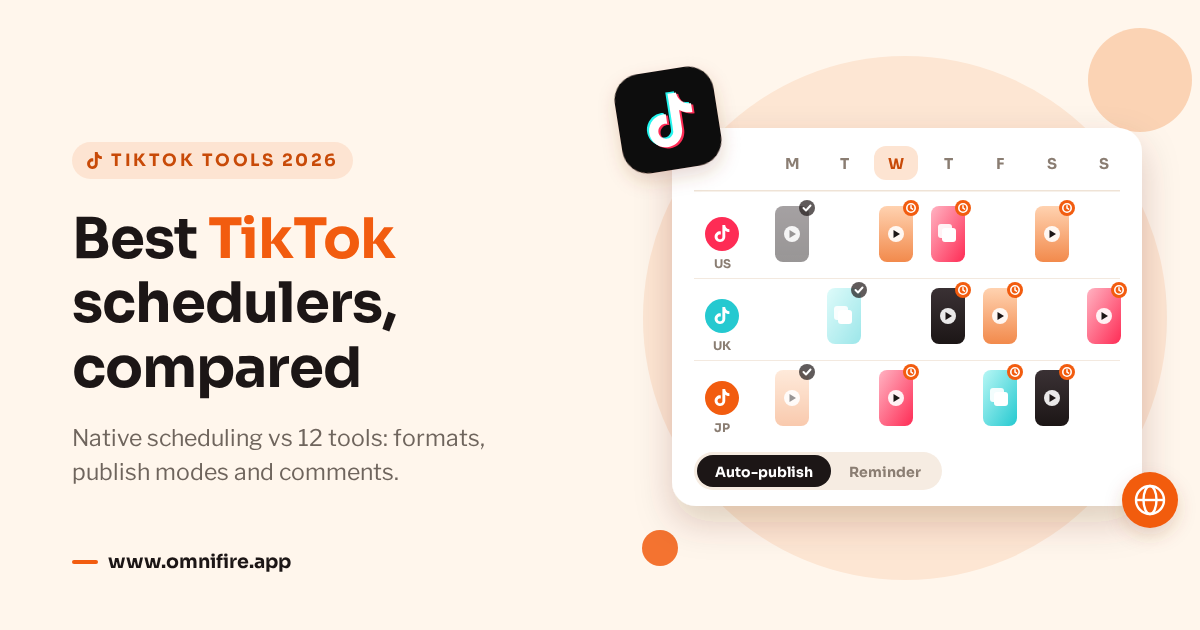
If you run one account and post simple videos, TikTok’s own Schedule option may be all you need. A third-party tool earns its place once you have several accounts, approvals, photo carousels, or other networks to plan alongside TikTok. Every tool that publishes directly uses the same TikTok API, so the shared daily cap and the required privacy and disclosure choices follow you whichever one you pick.
The right TikTok scheduler depends less on the calendar than on what happens around each post. Who approves it? Does someone have to finish it inside TikTok? Who answers the comments afterwards? Answer those three and the list gets short quickly.
Disclosure: we make OmniFire. We checked each vendor’s own TikTok page on October 24, 2026, and checked OmniFire against its live product and code. We worked from documentation, didn’t run hands-on tests, and aren’t ranking anyone. We don’t compare competitor prices, since seats, profiles and add-ons change the bill and prices move.
Check TikTok’s own scheduler first
The free option is already in TikTok. Look for Schedule in TikTok Studio or on the desktop upload page, and see what your account actually offers before you plan around it. Whether it’s there, how far ahead you can schedule, and which formats you get all vary by account, and TikTok has changed them over time.
So a limit quoted in an old tutorial may not apply to you; the upload screen, with the content you actually plan to post, is the best guide. If you only run that one account and its scheduling options cover what you need, a separate calendar probably won’t add much. The steps are in our guide to how to schedule TikTok posts.
What every third-party TikTok scheduler has to do
Third-party tools publish through TikTok’s Direct Post API. An app has to pass TikTok’s audit before it can post publicly; until then it can only post privately. The rules are the same whichever dashboard you use, so when you trial a tool, look at its final publishing screen as well as the calendar.
- Show the destination account. You should see which account you’re posting to before you confirm. That matters when several clients have similar names.
- Let you choose privacy. TikTok supplies the options for each account, and none can be preselected, so someone picks one for every post.
- Start with interactions off. Comments, Duet and Stitch stay off until you turn them on, so check them during review.
- Ask about commercial content. Your brand maps to “Promotional content” and Branded content maps to “Paid partnership”. Branded content can’t be set to “Only me”.
- Collect music consent. You have to agree to TikTok’s Music Usage Confirmation before the post goes out, on top of picking a time.
- Respect the account’s shared cap. TikTok says a creator account typically gets around 15 Direct Post publications per 24 hours. The number varies by creator and is shared across all tools.
- Keep tool branding off the media. Tools can’t add their own watermarks or logos. Also, a published post can take a few minutes to show up.
On a team, it helps to put the account, visibility and commercial declaration in the approval brief so the reviewer checks them along with the copy. And switching tools won’t give the same account a second daily allowance.
Auto-publish versus a notification to finish in TikTok
With auto-publish, the prepared post goes out at the scheduled time. With a reminder, a person gets a notification and finishes publishing themselves. Buffer, Publer, Metricool and SocialPilot list reminders next to automatic publishing. With reminders, somebody has to be around when the notification lands, which matters if your team works across time zones.
Buffer’s FAQ says TikTok’s API doesn’t give access to the full TikTok music library. For videos that need trending sounds or in-app effects, it sends you a notification to publish manually. Publer likewise describes adding trending sounds just before posting through its app reminders. Either way, the last step happens in TikTok.
OmniFire always auto-publishes. It has no reminder mode and no trending-sound library, so if a video needs a TikTok-only effect, it’s better to know before you schedule it.
TikTok features at a glance
| Tool | Formats listed | Publish mode | Comments in inbox |
|---|---|---|---|
| OmniFire | Video, photo, carousel | Auto-publish | No |
| Metricool | Video, carousel | Auto or reminder | Yes |
| Publer | Video, photo, carousel | Auto or reminder | Not listed |
| Buffer | Video | Auto or reminder | Yes |
| Sprout Social | Video | Scheduled | Yes |
| Agorapulse | Not listed | Auto-publish | Yes |
| Later | Not listed | Auto-publish | Yes |
| Zoho Social | Not listed | Auto-publish | Yes |
| SocialPilot | Not listed | Auto or reminder | Not listed |
| Sendible | Video | Auto-publish | Not listed |
| Vista Social | Video, carousel | Auto-publish | Not listed |
| Hootsuite | Video | Scheduled | Not listed |
“Not listed” just means we didn’t find it on the vendor’s page in this check; the feature may still exist. The formats column only counts formats a vendor names explicitly; a vague “posts” doesn’t count. The inbox column is about TikTok comments specifically, not an inbox for other networks.
Several TikTok accounts and other networks
OmniFire
OmniFire publishes videos and photo posts of up to 35 images, and each schedule has its own time zone. The same post can go to TikTok and OmniFire’s other 14 networks. Approvals start on Business, and TikTok analytics are included. Plans start from $19.99/month, with a 7-day trial that doesn’t need a card.
Worth checking: TikTok comments don’t come into the inbox, and there’s no reminder mode, trending-sound library or free plan. See the TikTok scheduler, scheduling features and plan details.
Metricool
Metricool lists videos and carousels, several accounts or brands in one dashboard, and planning across time zones. Switch off its Auto-publish toggle and you get push or email reminders. It lists approval workflows and roles, and puts comments and messages in one inbox.
Worth checking: its country-based Top 100 trending audio is listed for business accounts. See how the audio you pick works with auto-publish or reminders, whichever you plan to use.
Publer
Publer lists videos, single photos and photo carousels. Its calendar previews scheduled posts and drafts, and videos can be crossposted to Reels, Shorts and Pinterest. It also describes app reminders so you can add trending sounds right before posting.
Worth checking: TikTok analytics need its Business plan. That’s separate from its claim that you can schedule TikTok posts for free.
Buffer
Buffer gives you automatic publishing or a notification to publish. It says auto-publish works for many videos as long as they meet TikTok’s publishing requirements. TikTok comments show up in Community, and one video can be crossposted to TikTok, Instagram Reels and YouTube Shorts.
Worth checking: videos with trending sounds or in-app effects get finished by hand after a notification. Work out which of your planned videos fall into that group.
Teams that answer TikTok comments
Sprout Social
Sprout Social lists video scheduling, analytics, and TikTok comments in its Smart Inbox. There are Inbox Rules and an Inbox Activity Report, plus a Content Calendar and Optimal Send Times. Message Approval Workflows let someone review videos before they go out.
Worth checking: use the 30-day free trial it lists to run your real review and comment-assignment process, not just to look at the calendar.
Agorapulse
Agorapulse lists creation, scheduling and auto-publishing, with a Publishing Calendar across channels. You can moderate TikTok comments, assign them to teammates, and clear spam in bulk. Approval workflows can include internal and third-party stakeholders.
Worth checking: approving content and handling comments are different jobs, often done by different people, so test them separately.
Later
Later lists scheduled auto-publishing, media validation and bulk scheduling. In its conversations feature you can reply to, like, hide and delete TikTok comments. It also lists audience-level and post-level TikTok analytics, and link in bio.
Worth checking: compare those comment actions with how you actually moderate, and try media validation in the trial before you fill a calendar.
Zoho Social
Zoho Social lists auto-publishing or advance scheduling, one central content calendar, and approval before anything goes live. It also describes team collaboration, TikTok reports, and moderating comments in real time from one window.
Worth checking: it lists a free plan, but it’s not clear which approval and reporting features that includes, so find out which plan your workflow needs.
Agencies
SocialPilot
SocialPilot gives you Direct Publishing at the set time or Mobile Reminders. It lists a calendar for each connected account, client approvals without logins, and bulk scheduling of up to 500 posts across multiple accounts. White-label styling for the tool and reports is listed too.
Worth checking: preparing posts in bulk doesn’t get around TikTok’s per-account Direct Post cap. Settle each client’s approval and publishing mode before you import a batch.
Sendible
Sendible lists TikTok Business and Personal accounts, thumbnail selection, and Duet and Stitch controls. You can schedule one at a time or in bulk, by CSV import or from the dashboard. Scheduled videos can require approval, and Client Connect handles client profiles.
Worth checking: go through the client connection and approval steps with whoever owns the account, not just the person preparing videos.
Vista Social
Vista Social lists videos and carousel posts, custom thumbnails, and a trending audio library or your own uploaded sound. It also describes bulk scheduling from the video library, a shared calendar, an auto-publishing queue and TikTok analytics.
Worth checking: its library won’t necessarily have every sound on TikTok, so ask how the specific audio you want gets published.
Big suite
Hootsuite
Hootsuite’s publishing FAQ describes uploading a TikTok video and picking a time to post. It also lists suggestions for posting time and for video dimensions or length. In its Composer you can turn Comments, Duets and Stitches on or off.
Worth checking: try the TikTok video and interaction controls with your own content. The privacy and disclosure choices for direct publishing are the same here as anywhere else.
Free TikTok schedulers
TikTok’s own Schedule option comes first. Buffer, Publer, Metricool and Zoho Social list free plans, and Publer and Metricool say outright that TikTok scheduling is free. A pricing page that says “free” won’t tell you how many accounts the plan allows or which of the features above it includes, so check those against the work you plan to run through it.
OmniFire has a 7-day trial, not a free plan. Sprout Social lists a 30-day trial. Hootsuite, Later, SocialPilot, Agorapulse, Vista Social and Sendible had no free plan in what we checked, so ask them about current trial terms.
How to choose a TikTok scheduling app
- List your accounts and markets, and who makes the final publishing call for each account.
- Test with the formats you really post, including photo carousels if you use them.
- Mark the sounds and effects that have to be finished in TikTok. If you go with reminders, pick who will act on them.
- Name the person who answers comments, and check that the inbox actually includes TikTok comments.
- Write down approval steps and each market’s local posting time, and agree on the time zone before anything is approved.
- During a trial, run a normal week with your usual handoffs. Then compare against the broader global-team tools guide and our tool comparisons.
Frequently asked questions
Is there a free TikTok scheduler?
TikTok’s own Schedule option is the first place to look. Buffer, Publer, Metricool and Zoho Social list free plans, and Publer and Metricool say TikTok scheduling is free. Look at the current limits before you move several accounts over.
Can a scheduler add trending TikTok sounds?
It depends on the workflow. Buffer says the API doesn’t include the full TikTok music library, so trending sounds get added when you finish in TikTok. Publer lists reminders for adding sounds, and Metricool and Vista Social list audio features. OmniFire has no trending-sound library.
Do I need a TikTok Business account to schedule posts?
Buffer says you don’t, though account type or region may limit some features. Metricool lists Personal, Creator and Business accounts; Sendible lists Personal and Business. Those are each vendor’s own statements and don’t make a rule for every tool or for TikTok’s native scheduler.
How many TikTok posts can I schedule per day?
What you put on the calendar and what actually gets published through Direct Post are different numbers. TikTok says a creator account typically gets around 15 publications per 24 hours, shared across tools and varying by creator. Adding another tool doesn’t give the account a separate allowance.
Will scheduled TikToks get fewer views?
No tool can promise reach, and we’re not claiming scheduled posts do better or worse than manual ones. The honest answer is to compare results on your own account and note which way each post was published.
Sources and corrections
Checked October 24, 2026. These are the vendor pages we used for TikTok features, plus TikTok’s developer guidelines. Trademarks belong to their owners. If a page or feature changes, send us the page and the correction and we’ll recheck the wording.